How to Manage Your Muzisecur Account: Profile, Mandates, and Subscription

Your Account space on Muzisecur centralizes everything related to your identity and settings: personal information, artist profiles, collaborators, mandates, and subscription. This tutorial explains how to navigate each tab and perform common operations.
Accessing your Account space
- Log in to app.muzisecur.fr.
- Click on your avatar (your initials) in the top right of the interface.
- In the dropdown menu, click “Account”.
You’ll land on your profile page, which has 4 tabs: Profile, Collaborators, Mandates, and Subscription.
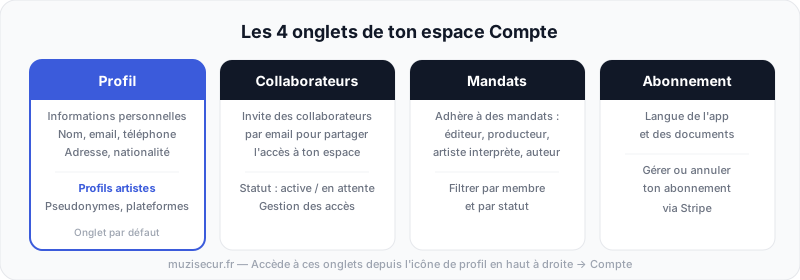 Each tab manages a different aspect of your account.
Edit your personal information
The Profile tab displays your personal information in the “Personal information” section:
- Full name
- Title (Mr. / Ms.)
- Date of birth
- City of birth
- Nationality(ies)
- Phone
- Full address
How to edit this information
- From the Profile tab, click the “Edit” button in the top right of the section.
- A form opens with all editable fields: first name, last name, date of birth, place of birth, nationality(ies), phone, and full address.
- Edit the necessary information.
- Click “Save”.
A confirmation message “Update successful” appears at the bottom of the page.
Important: this information appears on the contracts and administrative documents generated by Muzisecur. Make sure it is accurate and up to date — especially the address and date of birth.
Add an artist profile
Below your personal information, the “Artist profiles” section lets you enter your artistic identities and link them to your streaming platform accounts.
Create an artist profile
- Click ”+ Add an artist profile”.
- Enter your stage name (artist name). If you don’t have one, you can use your real name.
- Click ”+ Add a platform” to link your streaming accounts.
- Select the platform from the dropdown: Spotify, Apple Music, YouTube, Amazon Music, or Deezer.
- Paste the identifier or URL of your profile on that platform.
- Repeat for each platform where you are present.
- Click “Save”.
What are artist profiles for? Muzisecur creates a new artist profile on each platform where no identifier is provided. By entering your existing accounts, you avoid duplicates during digital distribution.
Manage your collaborators
The Collaborators tab lets you invite other people to access your Muzisecur workspace. This is useful if you work with a manager, an assistant, or a partner who needs to view or manage your label.
Add a collaborator
- Click on the “Collaborators” tab.
- Click ”+ Add a collaborator” in the top right.
- Enter the email of the person to invite.
- Click “Add”.
The person receives an email invitation. Their status in the list changes from “Request sent” to “Active collaboration” once they accept the invitation.
Manage access
From the collaborators list, you can see the name, email, and collaboration status of each person. You can also cancel a pending invitation or remove a collaborator via the ”…” menu on the right of each row.
Sign your mandates
The Mandates tab manages legal mandates between your label’s members and your contacts. A mandate formalizes the professional relationship: who produces, who publishes, who performs.
The 5 types of mandates available
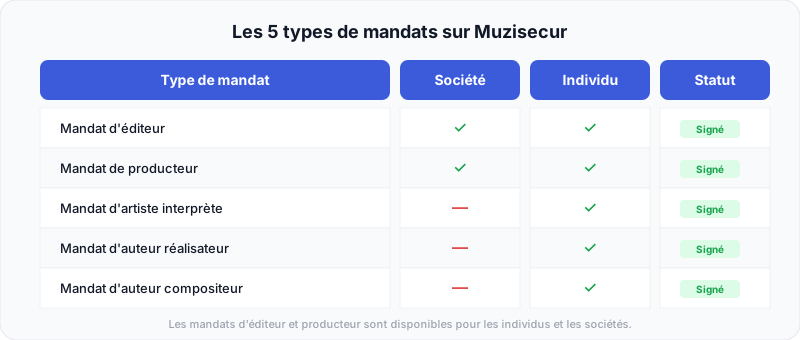 Publisher and producer mandates are available for both individuals and companies. The other three are reserved for individuals.
| Mandate type | Description |
|---|---|
| Publisher mandate | Formalizes the relationship between a publisher and an author/composer for the exploitation of their works |
| Producer mandate | Formalizes the relationship between a producer and an artist for phonographic production |
| Performing artist mandate | Binds a performing artist to a structure for the exploitation of their performances |
| Author-director mandate | Binds an author-director (artistic director) to a structure |
| Author-composer mandate | Binds an author-composer to a structure for the exploitation of their compositions |
To understand the implications of each mandate type, check our guide on essential contracts for independent artists.
Subscribe to a new mandate
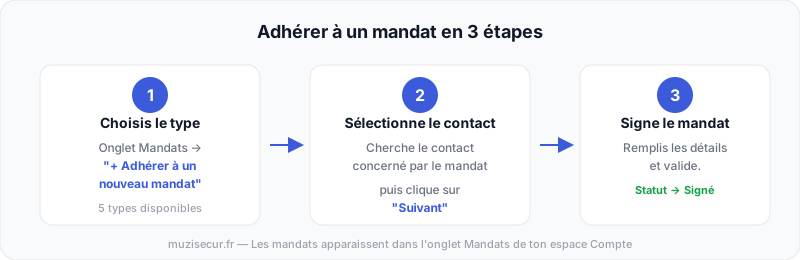 Choose the type, select the contact, then sign the mandate.
- From the Mandates tab, click ”+ Subscribe to a new mandate”.
- In the “New mandate” window, select the mandate type from the dropdown.
- In the “Related contact” field, search for and select the contact linked to this mandate. If the contact doesn’t exist yet, you can add a new one directly from this page.
- Click “Next”.
- Fill in the mandate details and confirm.
The mandate appears in the list with the status “Signed”.
Filter and search mandates
The Mandates page displays a table with the member, mandate type, status, and linked entity. You can:
- Filter by member via the “Select a member” field (search by name)
- Filter by status via the dropdown menu
Manage or cancel your subscription
The Subscription tab displays your language settings and subscription management options.
Language settings
You can separately configure:
- The application language (Muzisecur interface)
- The document language (contracts, memo deals generated)
Edit the dropdown menus then click “Save”.
Manage your subscription
Click “Manage my subscription” to access the Stripe payment portal. From this portal, you can:
- View your billing history
- Add or update your payment method
- Update your billing information
- Click “Back to MUZISECUR” to return to the application
Cancel your subscription
- From the Subscription tab, click “Cancel my subscription”.
- A confirmation window appears: “Are you sure you want to cancel your subscription?”
- Click “Cancel my subscription” to confirm, or “Back” to go back.
Good to know: after cancellation, your subscription remains active until the end of the current billing period. You won’t lose access immediately. You simply won’t be charged on the next cycle.
FAQ — Managing your Muzisecur account
How do I access my account settings on Muzisecur?
Click on your avatar in the top right of the interface, then on “Account”. You’ll land on the Profile page showing your personal information and artist profiles.
Can I change my email or address on Muzisecur?
Yes. From the Profile tab in your Account space, click “Edit”, change the desired information, then click “Save”.
How do I add an artist profile with my Spotify and Apple Music links?
From the Profile tab, click ”+ Add an artist profile”. Enter your stage name, then click ”+ Add a platform” to add your Spotify, Apple Music, YouTube, Amazon Music, or Deezer links.
What is a mandate on Muzisecur?
A mandate is a legal document that formalizes the relationship between a member of your label and a contact (artist, author, composer). There are 5 types: publisher mandate, producer mandate, performing artist mandate, author-director mandate, and author-composer mandate.
How do I cancel my Muzisecur subscription?
From the Subscription tab in your Account space, click “Cancel my subscription”, then confirm. Your subscription will remain active until the end of the current billing period.
How do I add a collaborator to my Muzisecur workspace?
From the Collaborators tab, click ”+ Add a collaborator”, enter the person’s email, then click “Add”. They will receive an email invitation.
Does my subscription stay active after cancellation?
Yes. After cancellation, your subscription remains active until the end of the current billing period. You will not be charged on the next cycle.
Conclusion
Your Account space on Muzisecur gives you full control over your profile, collaborators, mandates, and subscription. By keeping your information up to date and your mandates signed, you ensure that all documents generated by the platform — contracts, memo deals, distribution sheets — are compliant and ready to use.
Ready to structure your music business? Log in to Muzisecur and make sure your profile is complete.
Related articles

How to Add a Contact on Muzisecur: Complete Tutorial
Learn how to add a contact on Muzisecur in 3 steps using the creation link. The recommended method for labels and independent artists.

How to Create a Music Label in France: The Complete Guide (2026)
Legal structure, SCPP/SPPF, distribution, contracts, budget: every step to launch your independent label in France.

Who Owns What in Music in 2026? Majors, Investment Funds, and Acquisitions
UMG acquires CD Baby, Sony buys Queen, Blackstone swallows Hipgnosis: the complete map of who owns what in the music industry.